Years ago, when I first installed a WiFi router in my house, just the fact that I could get even a weak signal, anywhere in my house, and even out on the back patio if I didn’t stray to far, seemed like a miracle. Flash forward to today and with everybody’s expectation of good, fast WiFi everywhere, old style, centralized WiFi routers aren’t cutting it.
Enter Wireless Mesh Networks.
Also known as “Whole Home Wireless”, Wireless Mesh Networks are comprised of multiple “nodes”, which are relatively small devices you locate throughout your house, that essentially re-broadcast and extend the reach of WiFi to a larger area than can typically be covered with a single WiFi router sitting next to, or built into, your cable modem.
It typically takes 2-3 nodes to cover a medium to large sized house and while there is a growing number of Mesh solutions available the top three are Eero, Orbi (made by Netgear) and Google WiFi*. Each has their advantages and disadvantages and I’ll refer you to sites like Cnet and Business Insider for reviews and comparisons. I don’t think you can go wrong with any of the three.
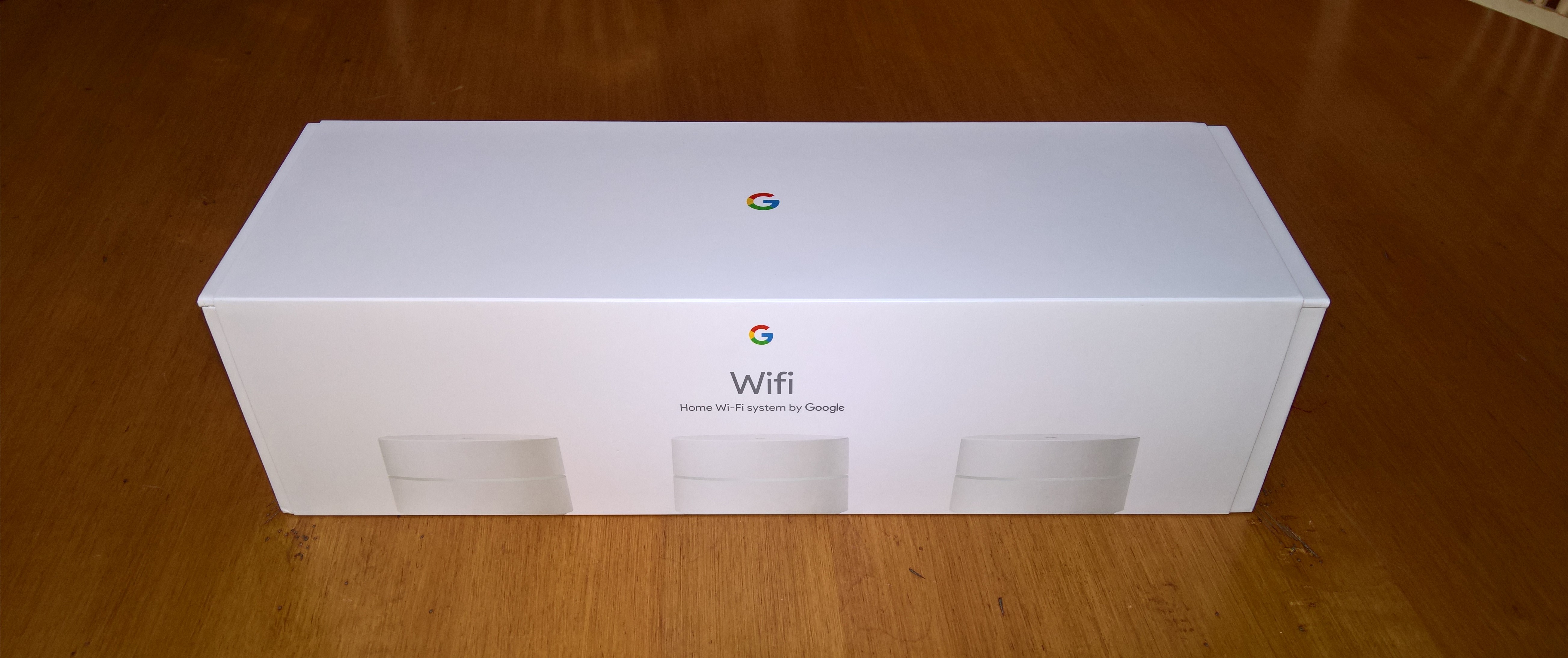
I opted for Google WiFi and after a trial run this summer, I recently replaced the WiFi provided by our Xfinity X1 Modem/Router throughout or whole house.
 The cost of Google WiFi is $124 per node or $279 for a 3-pack and given the size of our house, and wanting good coverage throughout the back yard, I opted for the 3-pack.
Google has a super easy to use “Google WiFi” app in the Google Play Store and the Apple App Store so setup and management of the network is simple.
Setup was very straightforward, I set up and named the first device using the app, attached it to the X1 modem, called Xfinity support, gave them the MAC Address of the device (printed on the bottom of the device), they added this to their system and then switched my X1 Modem/Router to bridge mode, effectively turning off the network routing and WiFi capabilities of the X1 box, and simply passing the internet signal though to the Google WiFi for wired and wireless routing.
Setting up the second and third nodes is just as easy; plug them in, use the app to name them, and the WiFi signal just spreads throughout your house.
For our house I have one node in my home office where all of our computer and A/V cables are hubbed into, one in the kitchen, and one upstairs. I actually could probably get away with just two nodes but with the three pack, the third node is only an incremental $30 so an easy decision to get over-kill on your WiFi coverage.
I used Speedtest.net and the wireless signal indicator on my Nexus 7 tablet and have pretty much the same speed and signal strength wherever I go in the house, and great coverage throughout my backyard.
Each node has two wired ports for attaching wired devices to. The first node needs one for connecting to the modem, leaving one free for a wired connection on it, but the other nodes can have two wired connections each, creating a pretty distributed wired and wireless network in your house.
For us, this isn’t enough wired connections. When we built our house I had networking cable run to every room and use wired connections for desktop PCs, XBoxs, Smart TV’s, etc and currently have 8 wired connections.
The X1 box only has 4 wired networking ports so I have had a 16 port Netgear gigabit switch as part of my set up, and I simply attached this switch to the first Google WiFi node. For me the wiring is basically: 1 network cable from the X1 modem to the first Google WiFi node, then 1 network cable from the first Google WiFi node to the Netgear switch, then 8 wired connections coming out of the switch to various devices throughout the house, and WiFi signal connecting the mesh with the other two Google WiFi nodes.
Simple set-up, great performance and relatively inexpensive.
If you find yourself being annoyed with mediocre WiFi the further you get away from your current router, you might want to look into a Mesh network.
*Note: Despite the name being “Google WiFi”, you don’t actually get your WiFi/internet service from Google, and there is no monthly fee associated with this. Google WiFi is simply devices that work with your existing internet service to help spread a stronger WiFi signal throughout your house.

 clarkb...